
Manual
Manual activation gives you the ability to manually deploy the device with the selected activation type, for the selected user or without user.
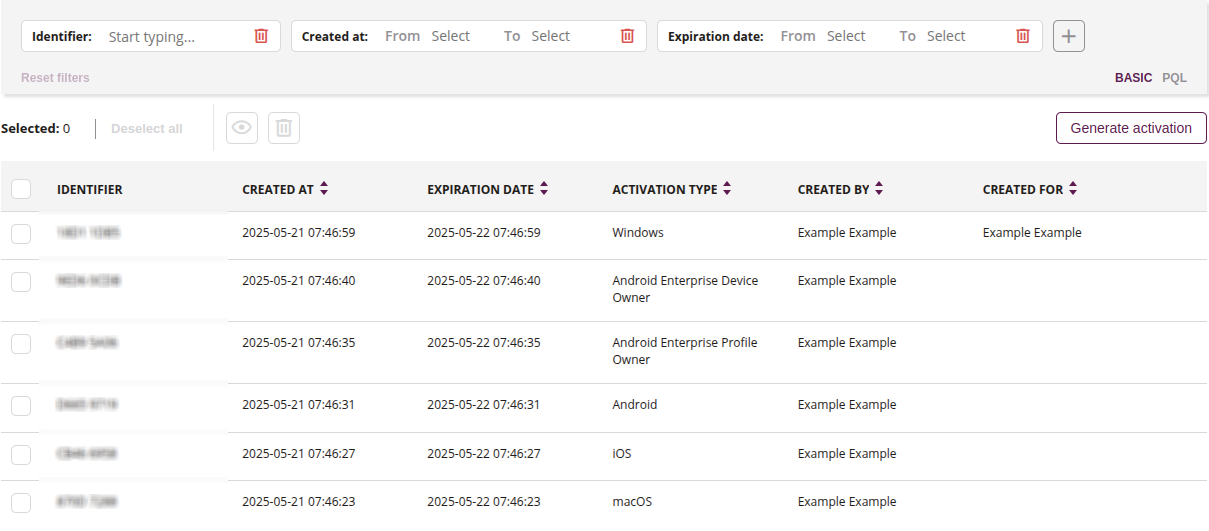
1 Filter of generated activations
- Use available filters to search for activations, such as:
- Identifier
- Created at
- Expiration date
- Activation type
- Created by
- Created for
2 Show
- This action allows you to preview the available activation selected from the list
3 Delete
- This action allows you to remove one or more activations if selected
- This action is irreversible
4 Generate activations
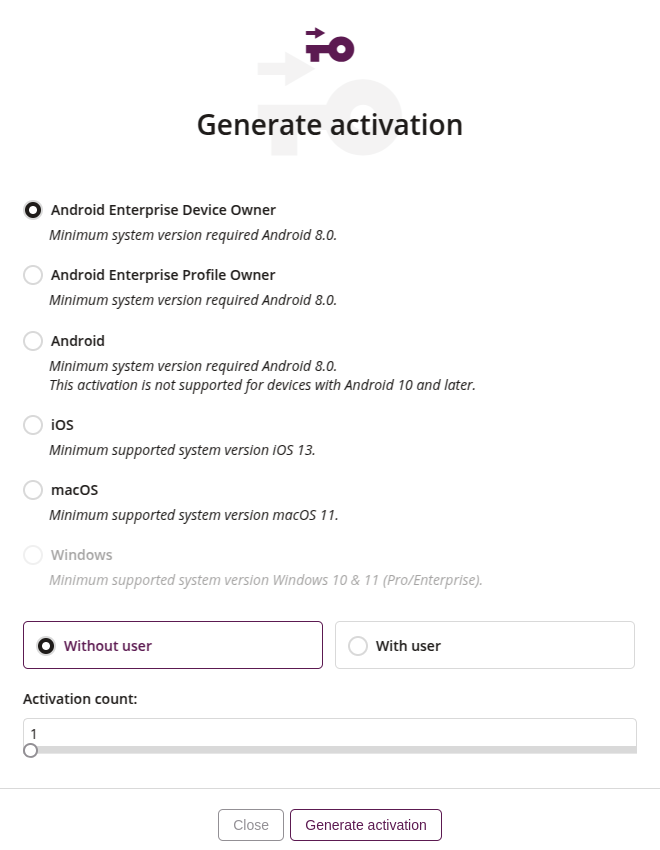
4.1 Activation template
- Select an available activation template from the dropdown list
- Available activation templates for the Android platform include:
- Android Enterprise Device Owner
- Android Enterprise Profile Owner
- Android MDM
- Required
4.2 Add activation template
- If you do not have an activation template available, you can create one using this action
4.3 Without user
- If this option is selected, the activation will be generated without user
- The activated device will not be assigned to any user in the MDM system
4.4 With user
- If this option is selected, you must specify the user to whom the activation will be assigned during generation
- After activation, the device will be assigned to that user in the MDM system
4.5 Activation count
- The slider is available only when the Without user option is selected
- Allows you to define the number of activations to be generated, from 1 to 100
- The Without user option is required
4.6 Need help?
- Click if you need help with device activation or want to learn what the given activation means
4.7 Generate activation
- This action allows you to generate an activation with the entered settings
4.8 iOS
- Generate activation for devices with the iOS system
4.9 macOS
- Generate activation for devices with the macOS system
4.10 Windows
- Generate activation for devices with the Windows system
5 List of activations
- List of generated activations, containing main information