
Template configuration
Here you can configure the activation template according to your needs by selecting the activation type for Android, Apple iOS, Apple macOS or Windows devices
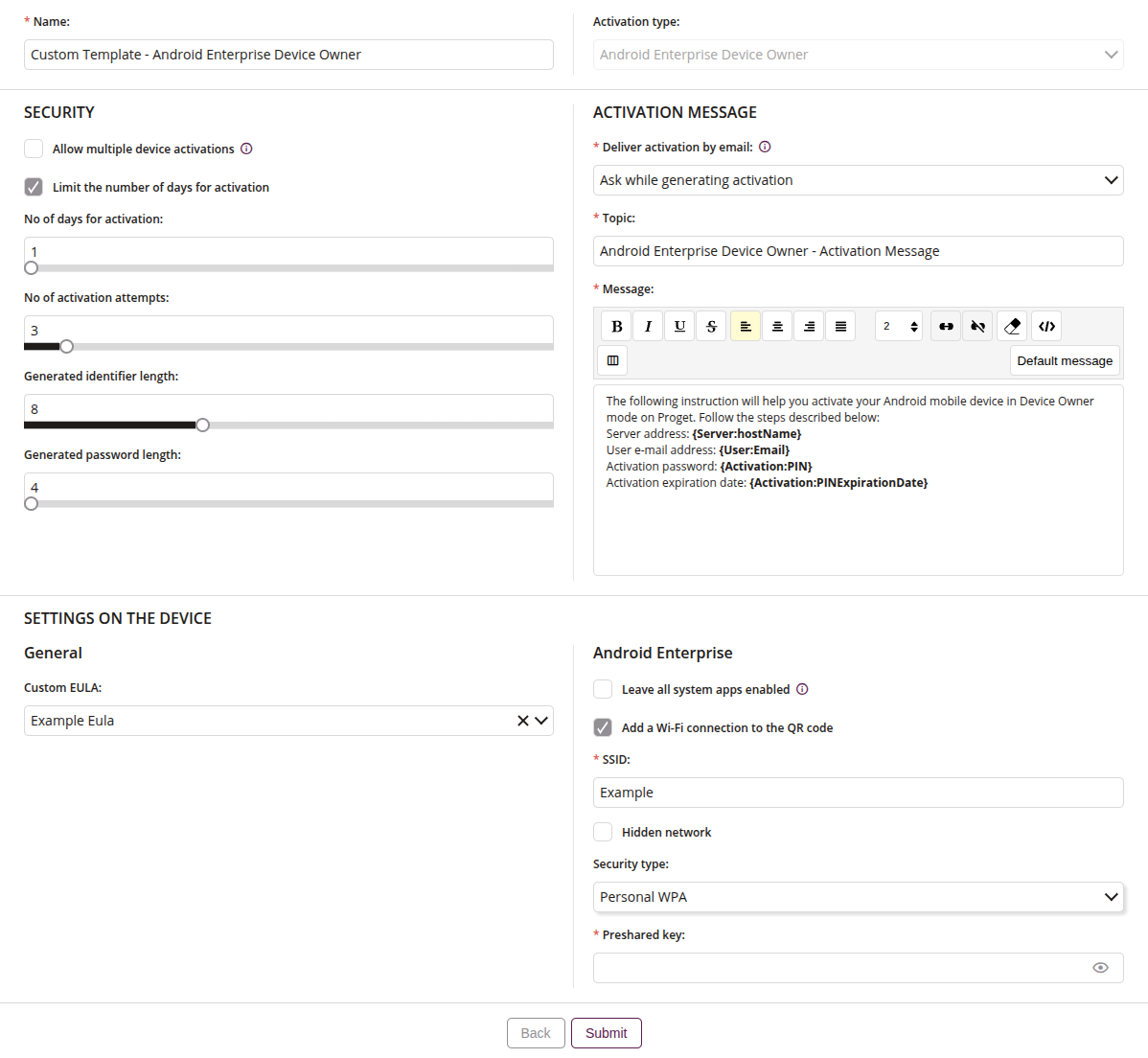
1 Name
- Enter the name of the Template
- Maximum length of the text is 255
2 Activation type
- Chose the type of activation, such as
- Android Enterprise Device Owner
- Android Enterprise Profile Owner
- Android
- iOS
- macOS
- Windows
3 Security settings
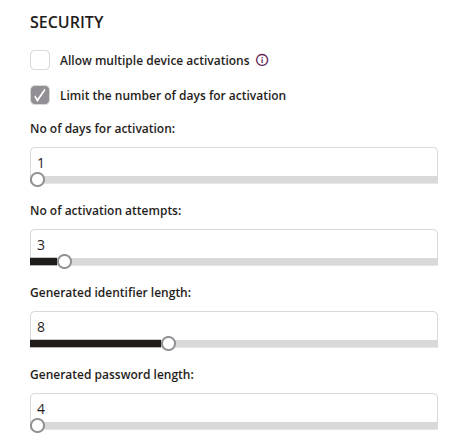
3.1 Allow multiple device activations
- If checked, this function allows multiple devices to be activated on the Proget system. If unchecked, activation is removed when the first device is deployed
3.2 Limit the number of days for activation
- If checked, you can declared the number of days for activation
3.3 No of days for activation
- Select the number of days for activation
3.4 No of activation attempts
- Select how many times the generated activation will be possible to use
3.5 Generated identifier length
- Select the length of the identifier which will be generated during activation
3.6 Generated password length
- Select the length of the password which will be generated during activation
4 Activation message settings
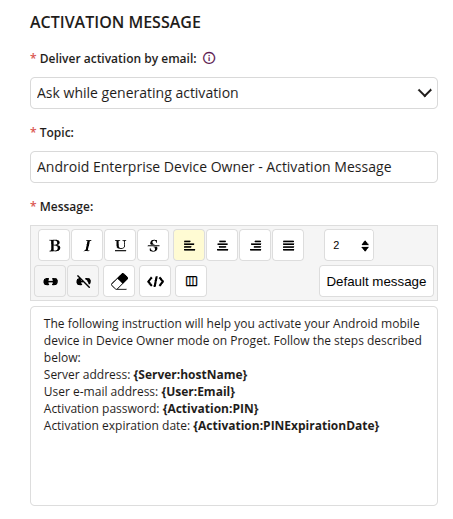
4.1 Deliver activation by email
- Chose the option deliver activation by email, such as:
- Do not send
- Ask while generating activation
- Send
- For this feature to work properly, SMTP must first be configured in the Settings tab
4.2 Topic
- Enter the topic of activation email
- Maximum length of text is 255
- Required if Do not send is not chosen
4.3 Message
- Enter the text of activation email
- Required if Do not send is not chosen
5 Settings on the device with Android system

5.1Custom EULA
- If created, you are allow to set your own custom EULA for this activation
- To learn how to create a custom EULA, click the title
5.2 Leave all system apps enabled
- If checked, the feature allows to keep the system apps enabled on the device added to the Proget system
- Available on Android Enterprise Profile Owner and Android Enterprise Device Owner when deployed via Enterprise QR codes
5.3 Add a Wi-Fi connection to the QR code
- If checked, the device will be automatically connected to the network
- The QR code will contain an unencrypted Wi-Fi password
5.4 SSID
- Enter the name that identifies the wireless network
- Required
5.5 Hidden network
- Required if the network for which we prepare configuration hides the SSID
5.6 Security type
- One of:
- None
- Personal WPA
- If None is chosen, the network will be without security
- If Personal WPA/WPA2 is chosen, user authentication manage is via WPA pre-shared key
5.7 Preshared key
- Enter the preshared key to authenticate into Wi-Fi
- Available if Security type: Personal WPA is chosen
6 Settings on the device with iOS and macOS system
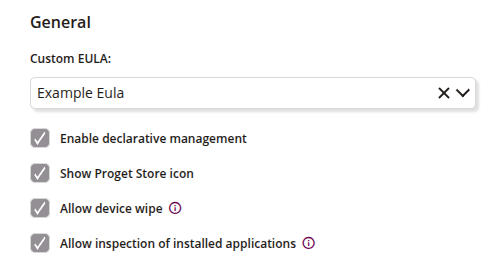
6.1Custom EULA
- If created, you are allow to set your own custom EULA for this activation
- To learn how to create a custom EULA, click the title
6.2 Enable declarative management
- If selected, the user and administrator gain additional features such as:
- Benefits for the organization:
- Easier enforcement of software updates
- Dynamic and scalable management
- Increased data security through policy and settings management
- Benefits for the end user:
- Smoother operation of the device’s operating system
- Devices maintain independence from the network, keep the required state on their own, and automatically reconfigure once the connection is restored
- Benefits for the organization:
- Required iOS version 16 or later
- Required macOS version 13 or later
6.3 Show Proget Store icon
- If selected, the Proget Store icon will be displayed on the device
6.4 Allow device wipe
- If selected, you are allowed to wipe your non-supervised device
- Does not apply to devices deployed by ABM
6.5 Allow inspection of installed applications
- If selected, applications from your non-supervised device will be visible to the Proget console administrator
- Does not apply to devices deployed by ABM