Geofencing
Updated:
Geofencing allows you to customize configuration and restrictions for devices based on its location. The profile allows you to configure specific actions in and outside business zones.
Compatibility:
- Android Enterprise Profile Owner
- Android Enterprise Device Owner
1. Geofencing map
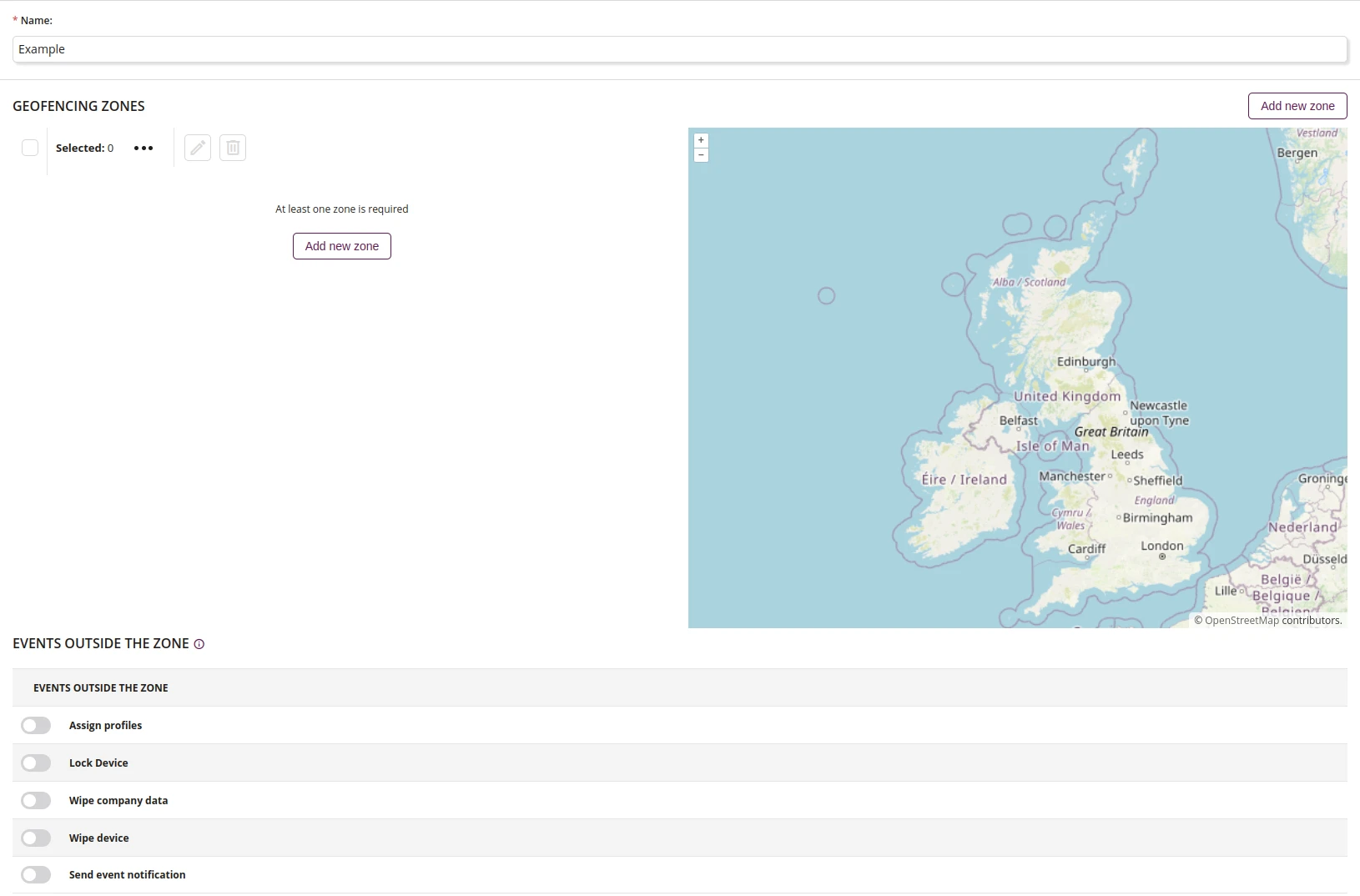
1 Name
- Enter the name of the new Geofencing profile
- Maximum length of the text is 255
- Required
2. Geofencing zones
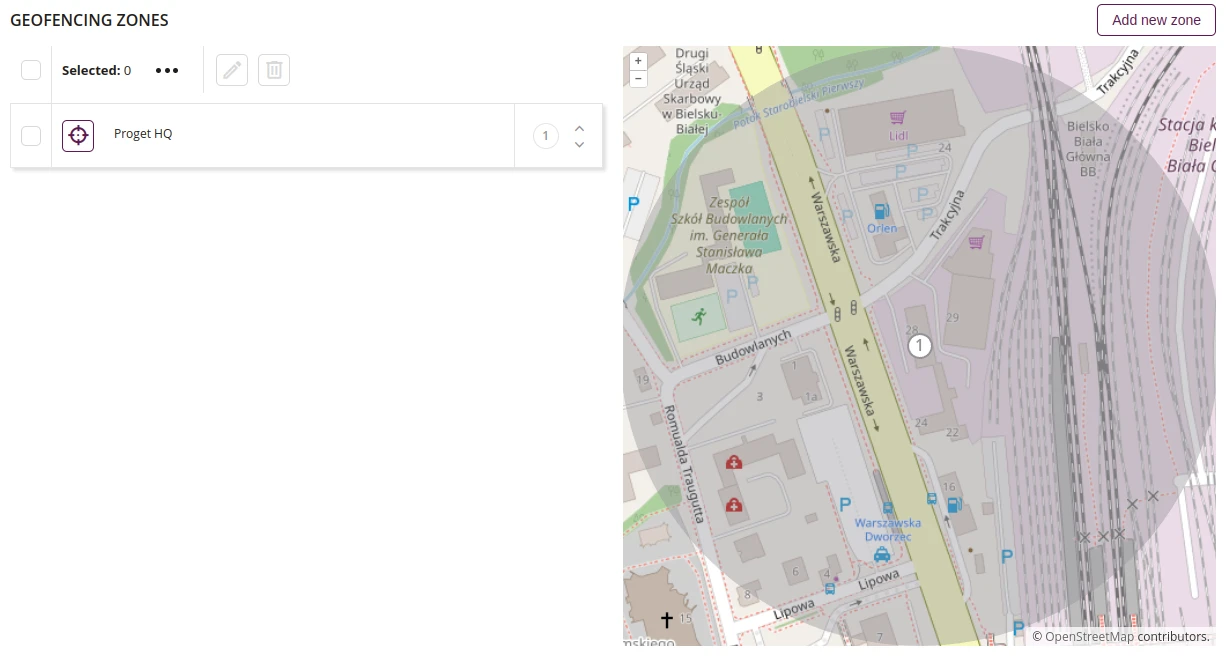
1 Edit
- Edit selected zone
2 Remove
- Remove selected zone
3 Created zones
- List of created zones
4 New zone configuration
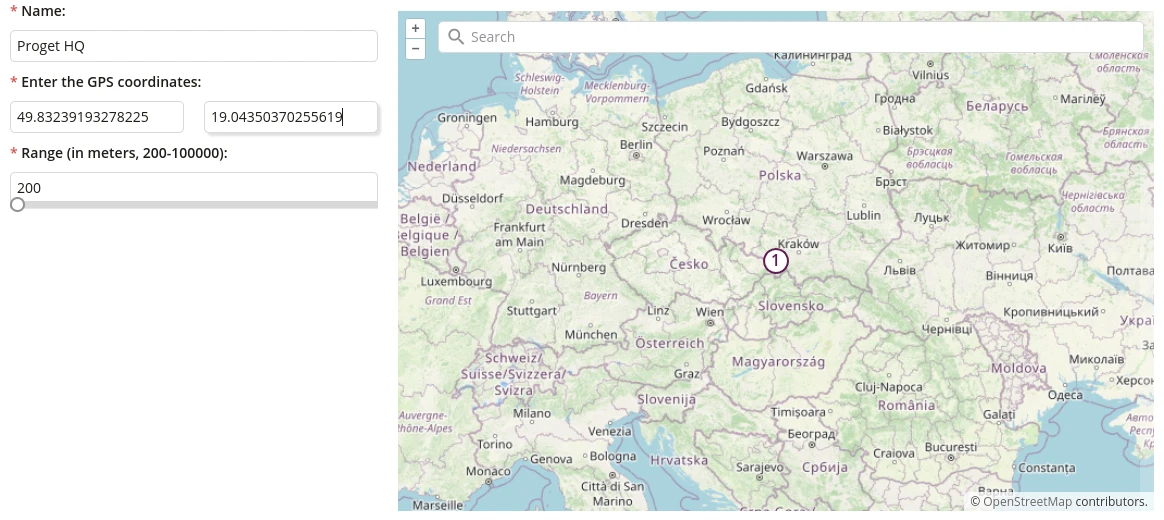
4.1 Name
- Enter the zone name
- Required
4.2 Latitude
- Enter the zone latitude
- Required
4.3 Longitude
- Enter the zone longitude
- Required
4.4 Range
- Enter the zone range
- Required
4.5 Find place
- Find a place on the map
3. Events
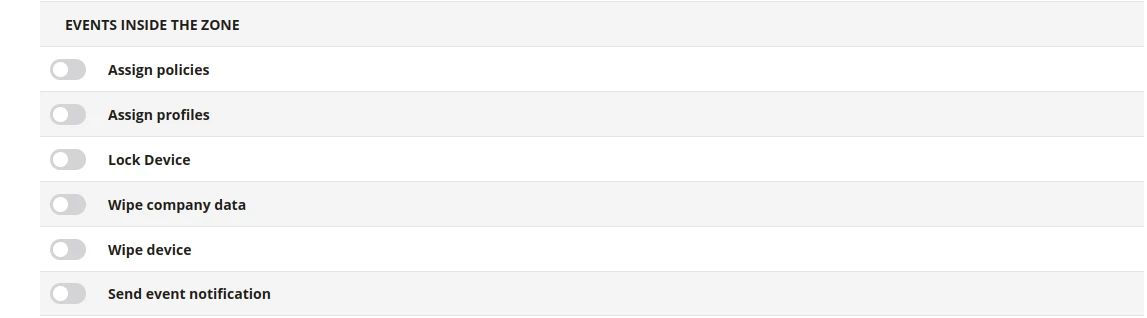
1 Assign policies
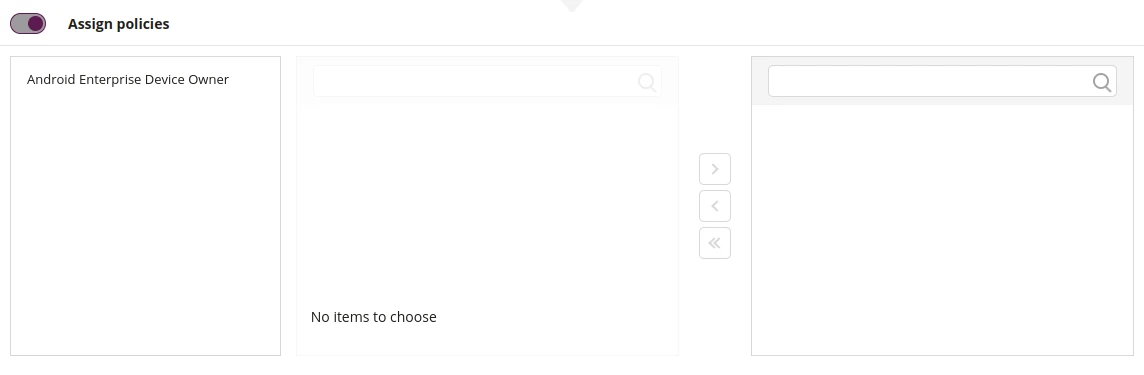
1.1 Choose policies
- Choose policies which will be assigned during event
2 Assign profiles
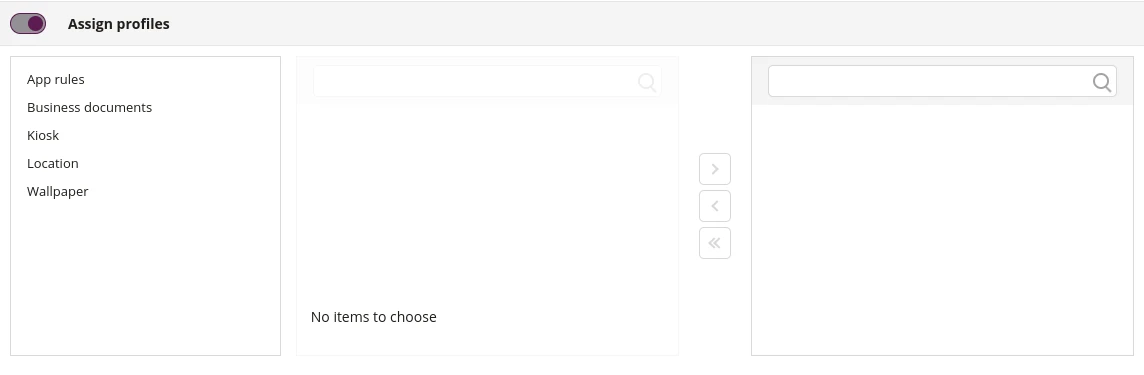
2.1 Choose profiles
- Choose policies which will be assigned during event
3 Lock device

3.1 Tolerance
- Choose the time after which device will lock
3.2 Message
- Enter the message which will be displayed on the locked screen
3.3 Phone number
- Enter the phone number which will be displayed on the locked screen
4 Wipe company data
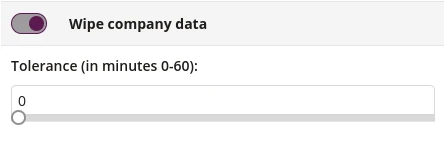
4.1 Tolerance
- Choose the time after which device will erase company data
5 Wipe device
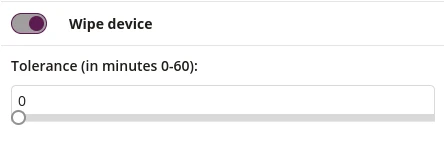
5.1 Tolerance
- Choose the time after which all device data will be erased
6 Send event notification
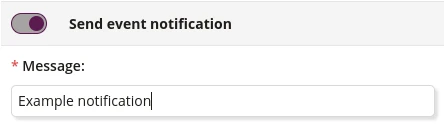
6.1 Text field
- Enter the text which will be displayed in notifications on devices outside the zone