Service password
Updated:
NEW
The Service password panel available in the Service section allows the administrator to generate an emergency service password for any device. The password is linked to a specific device and has a defined validity period (default 24 hours, minimum 5 minutes, maximum 30 days). It works even when the device has no internet connection or the local database is damaged. Available actions and their behavior depend on the device activation type - some options may be unavailable or behave differently on COPE and Android MDM activations. After use, the device enters a 60-minute privileged window, after which it returns to the state required by policies. The password can be entered manually or scanned as a QR code on the device.
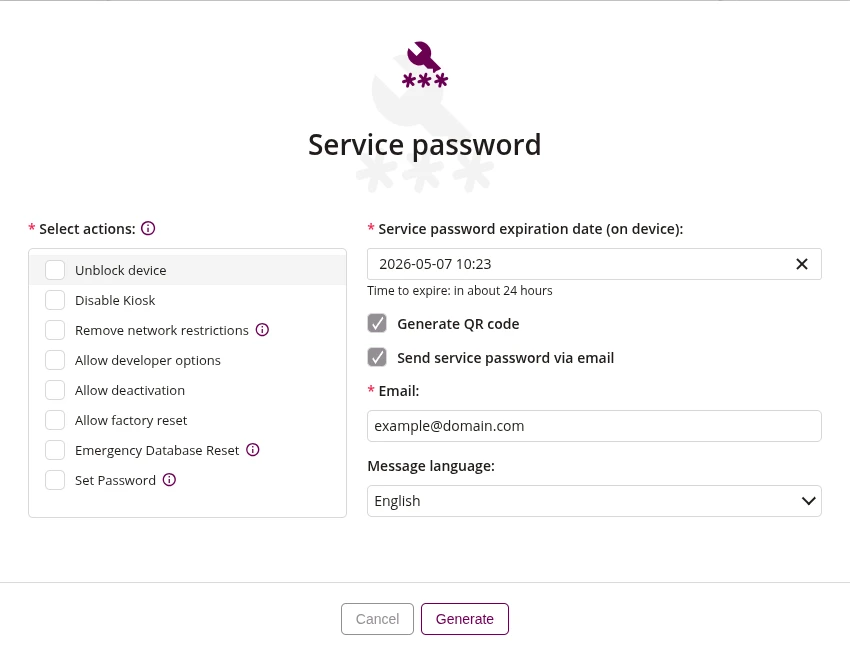
1 Unlock device
- If checked, the service password will unlock the device from Lost Mode
- Behavior depends on the device activation type
2 Disable Kiosk
- If checked, the service password will exit the device from Kiosk mode
- Available only on activations that support the Kiosk profile
3 Remove network restrictions
- If checked, the service password will temporarily remove network restrictions imposed by network-related policies on the device
4 Allow developer options
- If checked, the service password will temporarily enable developer options on the device
5 Allow deactivation
- If checked, the service password will allow deactivation of the Proget MDM application on the device
6 Allow factory reset
- If checked, the service password will allow the user to perform a factory reset on the device
7 Emergency Database Reset
- If checked, the service password will authorize an emergency reset of the Proget MDM application database on the device
- It cannot be combined with other actions
8 Set Password
- If checked, the service password will allow setting a new device password in the Direct Boot scenario (after device restart)
- It cannot be combined with other actions
- Behavior depends on the device activation type
9 Service password expiration date (on device)
- Set the date and time when the service password will expire on the device
- Default validity is 24 hours, minimum 5 minutes, maximum 30 days
10 Generate QR code
- If checked, a QR code will be generated along with the service password for easier scanning on the device
11 Send service password via email
- If checked, the generated service password will be sent to the specified email address
12 Email
- Enter the email address to which the service password will be sent
- Required if 'Send service password via email' is checked
13 Message language
- Select the language in which the email message with the service password will be sent
14 Generate
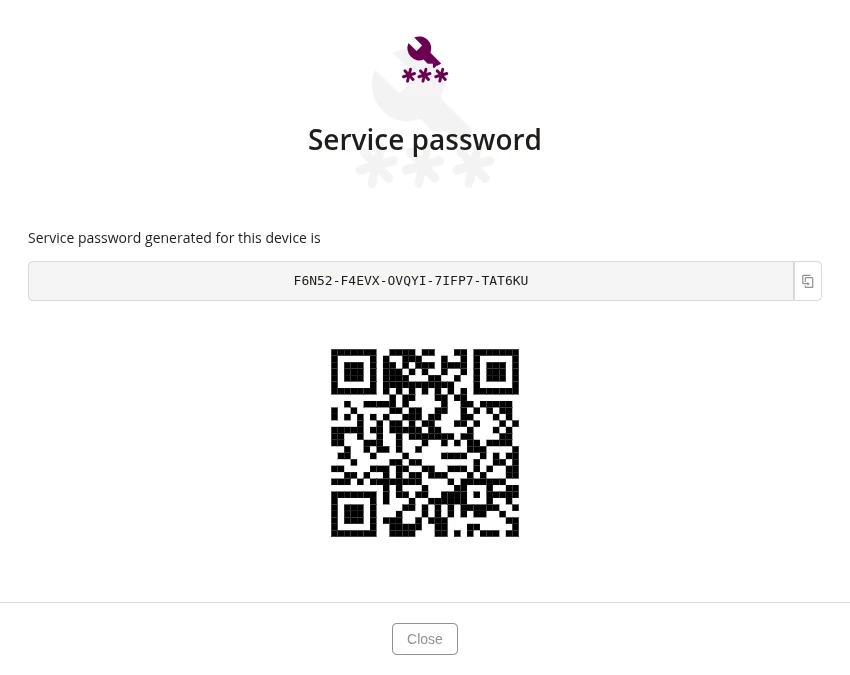
14.1 Service password generated for device
- Displays the generated service password for the device
- The password can be copied to clipboard using the copy icon
14.2 QR code
- Displays the QR code containing the service password for scanning on the device
- Visible only if 'Generate QR code' was checked