Service password
Updated:
The Service password panel allows the administrator to generate an emergency service password for the device. The password is linked to a specific device and has a defined validity period (default 24 hours, minimum 5 minutes, maximum 30 days). It works even when the device has no internet connection or the local database is damaged. On COPE activation, the 'Unlock device' action unlocks the work space (not the entire device), and the Kiosk profile is not available. The 'Set Password' option works differently than on Device Owner - the code is generated independently (without QR), only the expiration date can be selected (not the time), and the code is valid for the entire selected day (max 1 use per day). After use, the device enters a 60-minute privileged window, after which it returns to the state required by policies. The password can be entered manually or scanned as a QR code on the device.
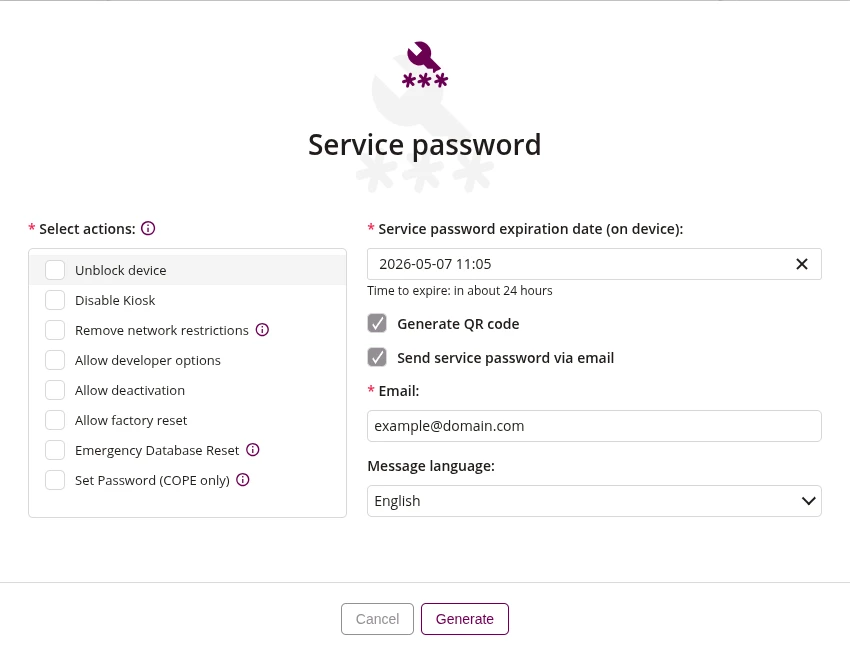
- If checked, the service password will unlock the device from Lost Mode
- If checked, the service password will exit the device from Kiosk mode
- If checked, the service password will temporarily remove network restrictions on the device
- The action removes restrictions imposed by network-related policies:
- Allow configuring mobile networks
- Allow mobile data usage while roaming
- Allow tethering configuration and mobile hotspots
- Allow edit Wi-Fi configuration
- Specify settings for Wi-Fi sleep configuration (Keep Always)
- Allow removing added Wi-Fi networks
- Allow private DNS configuration (COPE only)
- The action removes restrictions imposed by network-related policies:
- If checked, the service password will temporarily enable developer options on the device
- If checked, the service password will allow deactivation of the Proget MDM application on the device
- If checked, the service password will allow the user to perform a factory reset on the device
- If checked, the service password will authorize an emergency reset of the Proget MDM application database on the device
- Use the service password in the Proget application in case of an application synchronization error
- It cannot be combined with other actions
- If checked, the service password will allow setting a new device password in the Direct Boot scenario (after device restart)
- Use the service password if you forget the device PIN. To do this, restart the device, tap the Proget notification, and enter the generated service password.
- It cannot be combined with other actions
- Set the date and time when the service password will expire on the device
- Default validity is 24 hours, minimum 5 minutes, maximum 30 days
- If checked, a QR code will be generated along with the service password for easier scanning on the device
- If checked, the generated service password will be sent to the specified email address
- Enter the email address to which the service password will be sent
- Required if 'Send service password via email' is checked
- Select the language in which the email message with the service password will be sent
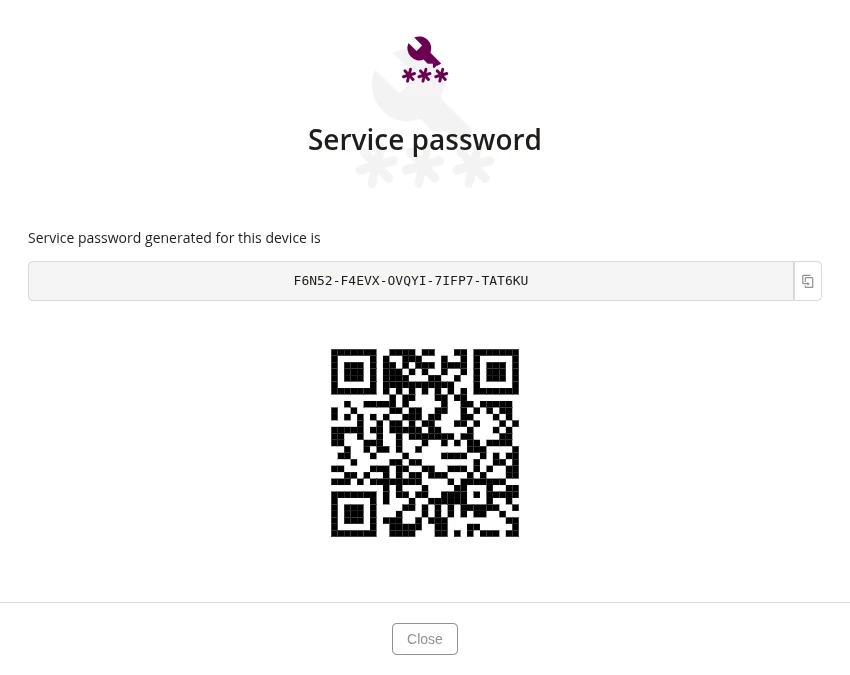
- Displays the generated service password for the device
- The password can be copied to clipboard using the copy icon
- Displays the QR code containing the service password for scanning on the device
- Visible only if 'Generate QR code' was checked