Multi App
Kiosk profile allows you to limit the functionality of the device to specific applications. You can use the Kiosk profile to configure the device to use only one or a few specific applications.
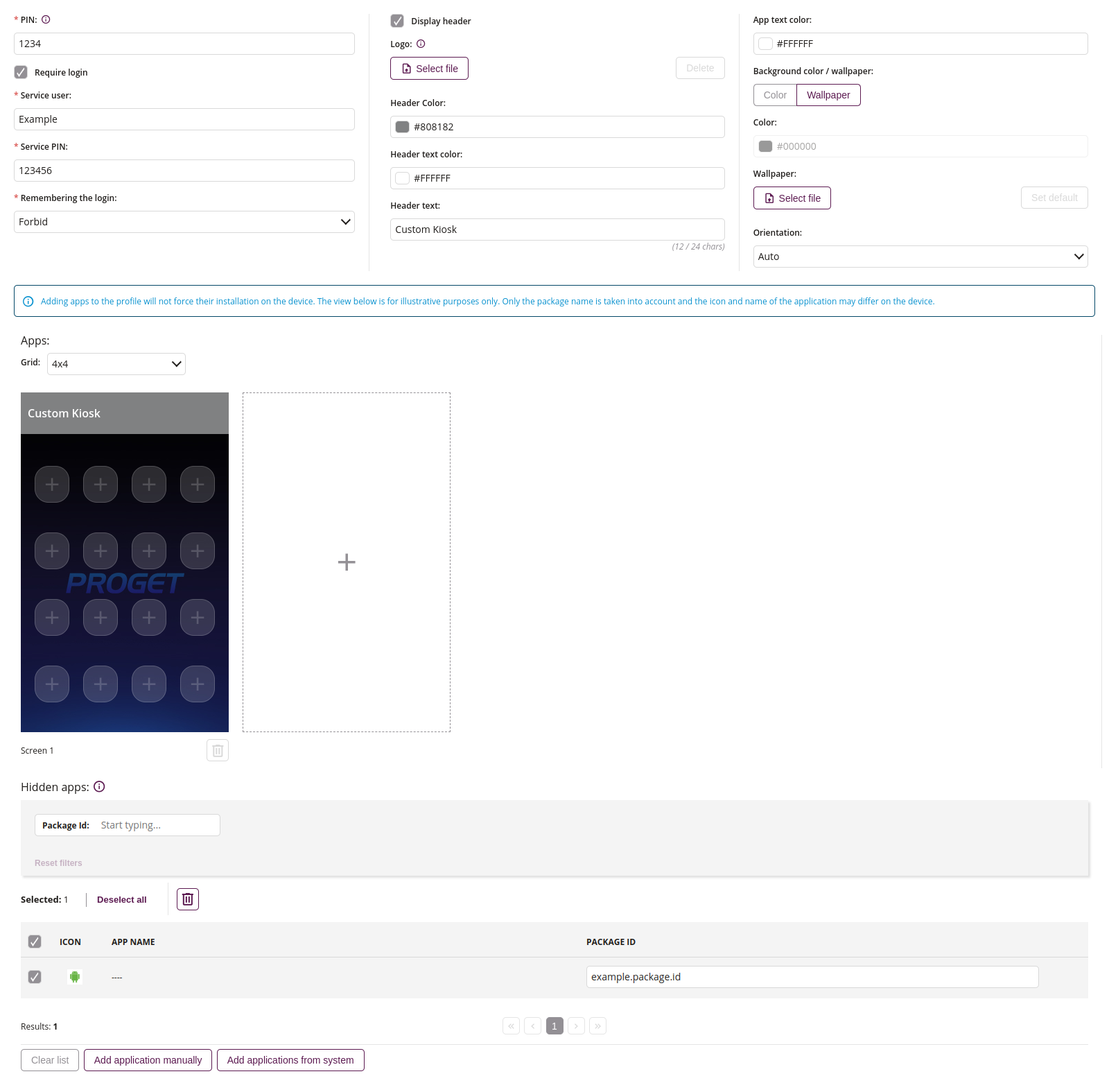
1 Admin configuration
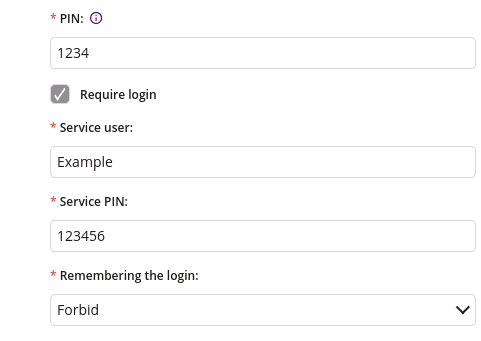
1.1 Require login
- If checked, requires log in to kiosk via service credentials
- Available only on Android Enterprise Device Owner
1.2 Service user
- Enter the kiosk service username
- Required if “Require login” is checked
1.3 Service PIN
- Enter the kiosk service password
- Required if “Require login” is checked
1.4 Remembering the login
- Chose from dropdown:
- Force
- Allow
- Forbid
1.5 Auto logout
- If enabled, the user will be automatically logged out from the kiosk after the screen goes off
- If disabled, a dedicated logout action becomes available directly on the kiosk screen
- Available only on Android Enterprise Device Owner
- Available when ‘Require login’ is checked
NEW
1.6 Auto logout time
- Specify the time after the screen goes off, after which the user should be automatically logged out
- The default value is set to ‘Instant’
- Available when ‘Auto logout’ is enabled
NEW
2 Header customization
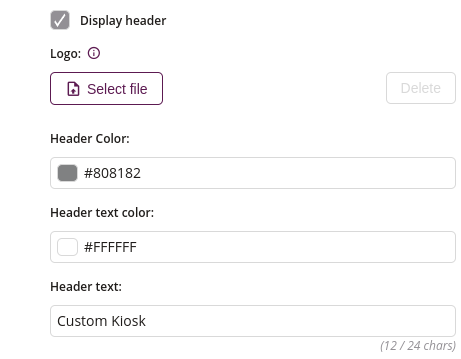
2.1 Display header
- If checked, displays the header in kiosk
- Available only on Android Enterprise Device Owner
2.2 Logo
- Choose the file of the logo in kiosk
- Allowed file type: png
- Required square graphics with maximum dimensions of 192 x 192 px
2.3 Header color
- Choose the color of the screen header background
2.4 Header text color
- Choose the color of the screen header text
2.5 Header text
- Enter the text of the screen header
- Maximum length is 24
3 Launcher configuration
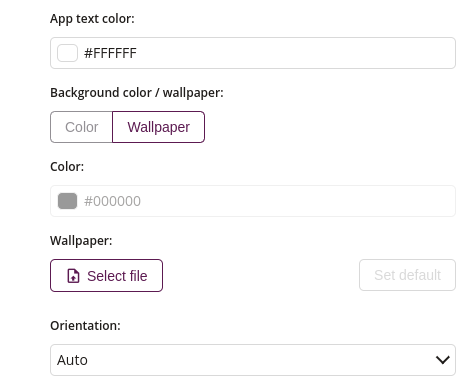
3.1 App text color
- Choose the color of the app text in kiosk
- Available only on Android Enterprise Device Owner
3.2 Background color / wallpaper
- Available only on Android Enterprise Device Owner
3.3 Color
- Choose the color of the screen launcher background
- Available only on Android Enterprise Device Owner
3.4 Wallpaper
- Choose the file of the wallpaper in kiosk
- Allowed file type: png
3.5 Orientation
- One of:
- Auto
- Portrait
- Horizontal
4 Apps
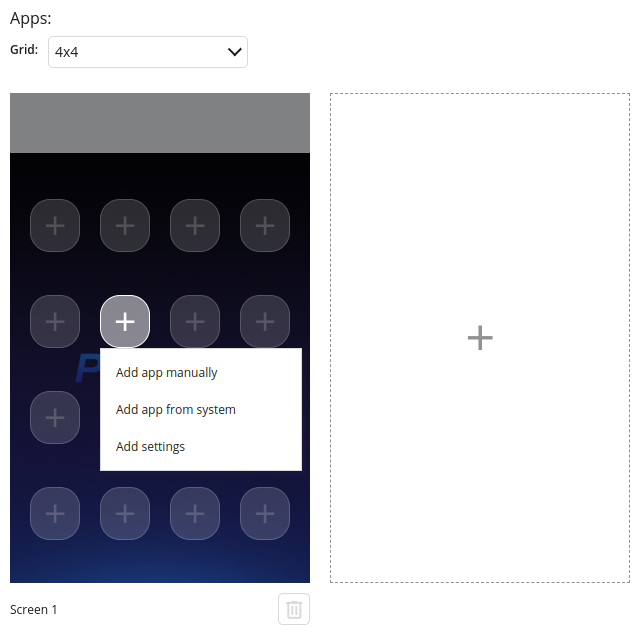
4.1 Grid
- Choose app grid at the Kiosk
- Available sizes depends on chosen orientation
4.2 Application holder
- Add applications to the screen
4.3 Add applications manually
- Add application to the kiosk by providing its package ID
4.4 Add applications from system
- Add applications from list of available applications in the system
4.5 Add custom settings icon
- Restricted access to system settings
- Wi-Fi
- Show available networks
- Wi-Fi Calling
- Bluetooth
- Mobile Networks
- Screen brightness
- Volume
- If set, requires at least one category
- Can be placed in multiple places on screen
4.6 Add action
- Name
- Set name of the action
- Required
- Choose the type of action, such as:NEW
- Intent
- This functionality allows you to trigger the specified action, using an intent
- Intent
- Enter the intent action to be triggered
- Required
- Action type
- One of:
- Start activity
- Start service
- Send broadcast
- Default: Start activity
- One of:
- Application ID
- Enter the package name of the application to which the intent should be directed
- Optional
- Additional parameters
- Optional list of extras passed with the intent
- Each parameter requires:
- Key
- Type – one of: String, Integer, Boolean, Float, Double
- Value
- Adding an action may allow the user to switch between application views to which they should not have access. To trigger an intent, the application that handles it must be unlocked in the kiosk
- LogoutNEW
- Logs the user out of the kiosk
- Available only when ‘Require login’ is enabled
- Exit kioskNEW
- Allows the user to exit the kiosk
- Requires the service PIN to confirm the exit
- Intent
4.7 Add screen
- Up to 8 screens
4.8 Remove
- Removes screen
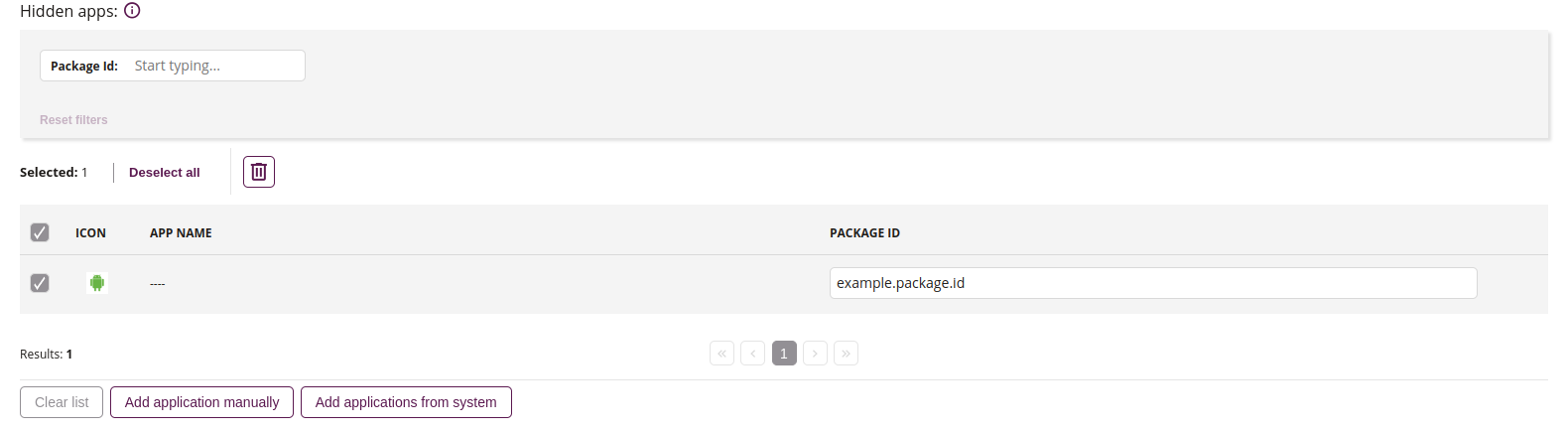
5 Hidden apps