
File Manager
BETA
The File Manager tab allows the administrator to remotely manage files on the device. From this view, you can browse the file structure, create and delete directories, upload and download files, and track the status of file operation tasks. The feature works on Android (Device Owner, Profile Owner) and iOS (within the File Manager app sandbox). Queued actions are visualized in the tree structure as a shadow structure (green: addition, red: deletion, yellow: folder not synchronized). Tasks are executed asynchronously – even when the device is offline, they will be carried out after the connection is restored.
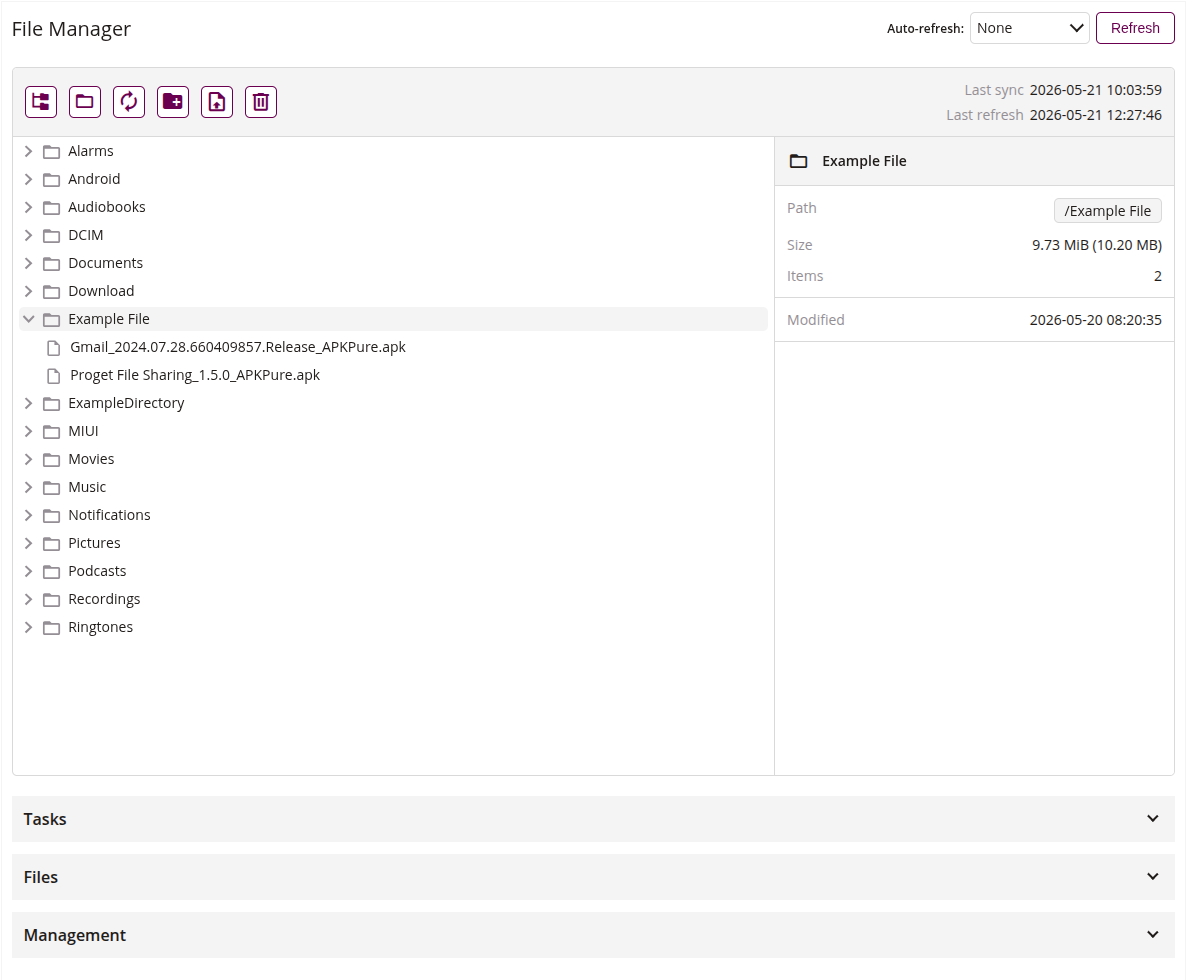
1 Panel tree structure
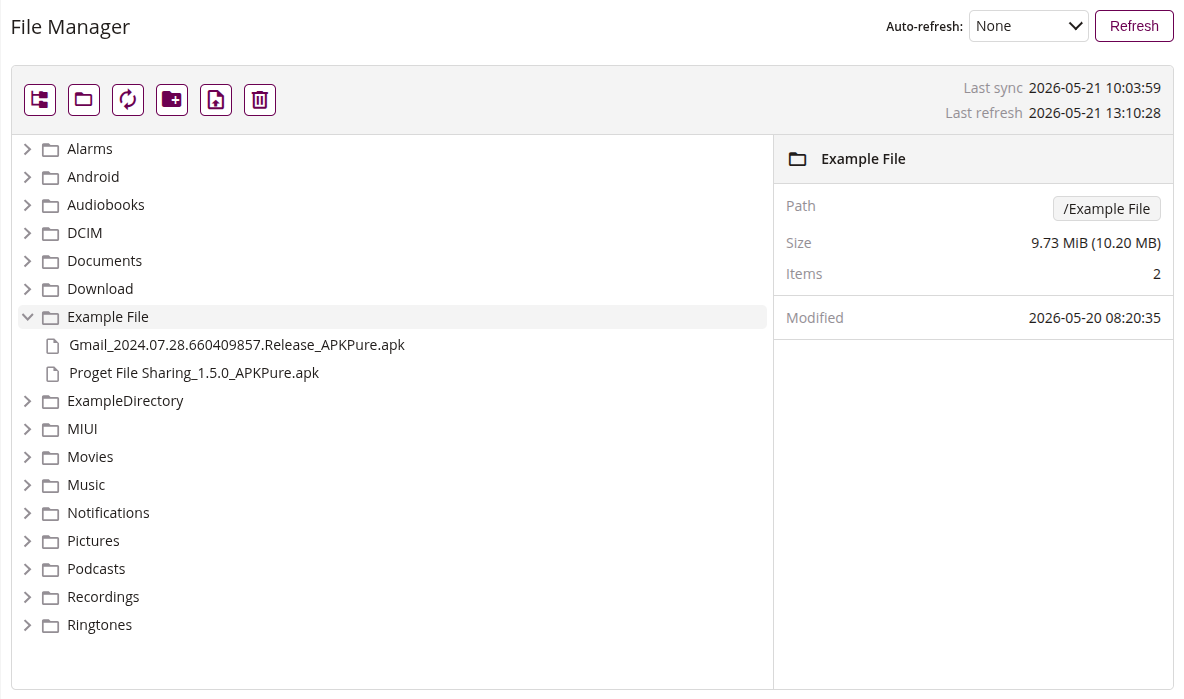
1.1 Auto-refresh
- Select the auto-refresh interval for the file structure view from the dropdown
1.2 Refresh
- This action allows you to refresh the file structure view
1.3 Expand all
- This action allows you to expand all directories in the file tree
1.4 Collapse all
- This action allows you to collapse all directories in the file tree
1.5 Force files structure synchronization
- This action allows you to force the device to synchronize its file structure with the server
1.6 Request directory creation
- This action allows you to request the creation of a new directory on the device
1.7 Upload file
- This action allows you to upload a file from the console to the selected directory on the device
1.8 Request directory deletion
- This action allows you to request the deletion of the selected directory on the device
1.9 File structure
- Tree view of the device file system with directories and files
- Queued actions are visible in the tree as a shadow structure (green: addition, red: deletion, yellow: folder not synchronized)
- Right-click on a file or directory to access context actions (e.g. request file deletion, download file)
1.10 Details of selected element
- Panel showing details of the selected file or directory, such as:
- Path
- Size
- Items
- Modified
2 Tasks
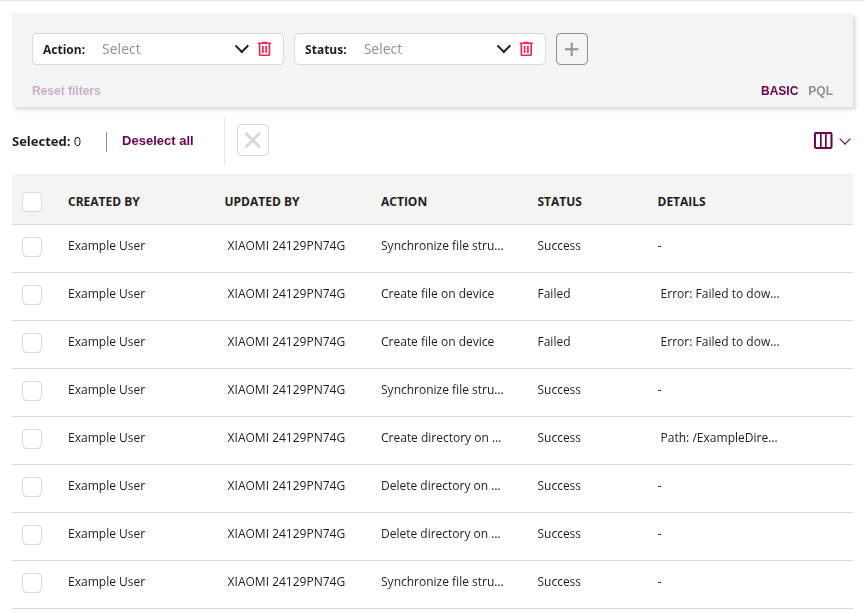
2.1 Filters
- Filters allow you to search for tasks by data, such as:
- Status
- Type
2.2 Cancel task
- This action allows you to cancel a task that has not yet been delivered to the device
- Available only for tasks with status “Pending”
- If the cancelled task was a file upload, the associated file is also deleted from the server
2.3 List of tasks
- List of all file operation tasks and their parameters
3 Files
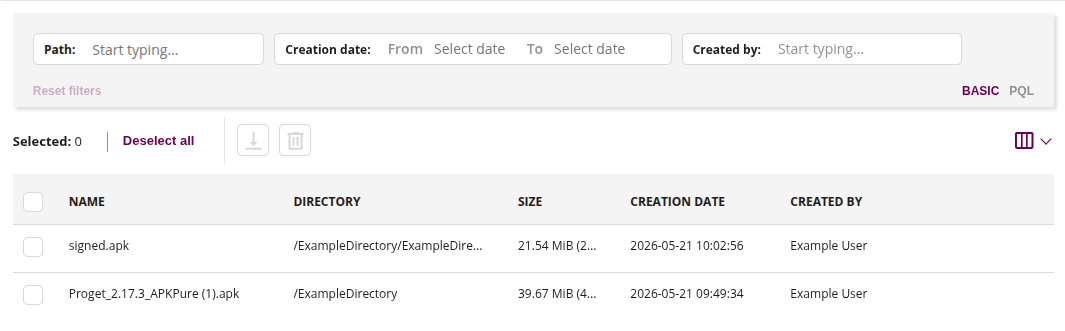
3.1 Filters
- Filters allow you to search for files by data, such as:
- File name
- Type
3.2 Download file
- This action allows you to download a file stored on the server to your computer
3.3 Delete file
- This action allows you to delete the selected file from the server
3.4 List of files
- List of all files stored on the server associated with this device and their parameters
4 Management

4.1 Regenerate authorization code
- This action allows you to regenerate the authorization code used by the File Manager mobile app to authenticate with the server
- Use when the mobile app cannot establish a connection or requires re-authorization